StayPut Support
How can we help?
Find answers to common questions about setting up and using StayPut.
Quick help
Start with the basics.
Knowledge base
StayPut answers
No matching answers
Try searching for arming, sensitivity, volume, background, Pro, recording, or restore.
Getting started
Getting started
What does StayPut do?
StayPut turns your iPhone or iPad into an audible motion alarm. You place the device with or against something you want to monitor, arm StayPut, and movement of the device can trigger an audible alarm.
How do I arm StayPut?
Slide to arm, then position your iPhone or iPad where movement should be detected. StayPut waits for the device to remain continuously still, briefly prepares, and begins movement-triggered alarm detection when it reaches Armed.
Why doesn't StayPut arm immediately?
StayPut waits for the selected Stillness Before Armed period so you can finish positioning the device. Stillness gives StayPut a stable starting point for motion detection and helps avoid treating placement movement as an alarm event.
Why did the arming countdown restart?
Movement before StayPut reaches Armed restarts the Stillness Before Armed countdown. Once the device remains still for the full selected time, StayPut briefly prepares and then becomes Armed.
What does Stillness Before Armed change?
Stillness Before Armed controls how long your iPhone or iPad must remain continuously still before StayPut becomes Armed. It does not change Alarm Delay.
How do I disarm StayPut?
Return to StayPut and use the disarm control. During an active protection session, StayPut requires owner authentication with Face ID or Touch ID before it disarms.
On iPhone and iPad, the unified disarm control gives you two choices:
- End Protection — slide left (or tap the left end) to disarm and finish the protection run.
- Continue Protection — slide right (or tap the right end) to disarm the current cycle and start another one, returning to Waiting for Stillness.
Your choice at the disarm control doesn’t change the Profile’s Auto Protect setting.
Can I Arm or Disarm StayPut from Control Centre?
Yes. The standard StayPut control uses your current Profile or Custom setup. When disarmed, tapping Arm opens StayPut and starts the normal arming flow. When protection is active, tapping Disarm opens StayPut and requires Face ID or Touch ID.
You can also make individual saved Profiles available for dedicated Control Centre controls. In Profiles, turn on Control Centre for the Profiles you want to expose, then add or configure a StayPut Profile control in Control Centre and choose the Profile. Enabling the option does not automatically add a control.
Motion & alarms
Motion & alarms
What triggers the alarm?
StayPut uses the device's motion sensors and triggers when movement exceeds the Motion Sensitivity setting you selected.
What does Motion Sensitivity change?
Low requires larger movement before triggering. Medium is the balanced default. High detects smaller movement.
Why didn't movement trigger the alarm?
Confirm StayPut reached Armed, check Motion Sensitivity, and make sure the protected iPhone or iPad itself actually moved. Also check that the protection duration has not ended. Try High sensitivity if you need StayPut to react to smaller movements.
Why is there a delay before the alarm sounds?
Alarm Delay is the configured period between movement detection and the alarm sounding. If Alarm Delay is set to None, StayPut starts the alarm immediately after movement is detected.
Profiles
Profiles
What are Profiles?
Profiles let you save and recall named combinations of Protection and Audio settings. They can include Stillness Before Armed, Alarm Delay, Auto-Rearm, Auto Disarm, Motion Sensitivity, Alarm Sound, Heartbeat Sound and Heartbeat Interval, including customized preset names and values.
Profiles are stored locally on the device. When protection starts from an exact named Profile, StayPut may show that Profile name during the session where it fits, such as in Live Activity or informative background status.
How do I switch Profiles?
When StayPut is Disarmed, use the Profile control above Slide to ARM to quickly switch to a saved Profile. You can also open and manage Profiles from Settings.
What does Custom mean?
Custom means the current Protection and Audio settings do not exactly match a saved Profile. If you change a Profile-managed setting after loading a Profile, StayPut shows Custom until you save or update a Profile, or apply another saved Profile.
Do Profiles change alarm volume or audio output?
No. Profiles save Protection and Audio content settings, but device-level output settings such as Alarm Volume, Output Route and low-volume guidance remain separate.
What happens if a Profile uses a custom sound that I later rename or delete?
Renaming a custom sound does not break Profiles that use it. Rename changes only the display name, while the underlying recording stays the same. If a referenced custom sound is deleted, StayPut safely falls back to a built-in sound while restoring the rest of the Profile.
How do I rename or delete a Profile?
Open Profiles in Settings, then swipe a saved Profile row. Swipe right to Rename. Swipe left to Delete.
Audio
Audio
Why does StayPut warn me about low volume?
StayPut's alarm is only useful if people nearby can hear it. The app warns when volume may be too low, but it does not prevent you from arming.
Can StayPut use a Bluetooth speaker?
Yes. StayPut uses the current audio output selected by iOS. If your iPhone or iPad is connected to a Bluetooth speaker, the alarm can sound through that speaker instead of the built-in device speaker.
Why would I use an external speaker?
If your protected device is inside a bag, backpack or luggage, its built-in speaker may be partly muffled. A nearby external speaker can provide a clearer alarm output.
How do I know where the alarm will sound?
Before arming, StayPut shows the current external alarm output on the main screen when one is connected. The Audio section in Settings also shows the current Output route. Check the displayed alarm output before arming so you know where the alarm will sound.
Does StayPut connect to or control the Bluetooth speaker?
No. Bluetooth pairing and audio routing are managed by iOS. StayPut uses the audio route currently selected by the system.
What is the heartbeat sound?
The heartbeat is a subtle periodic sound during an active protection session, including while StayPut is waiting for the device to become still. It provides audible confirmation that StayPut is still active and also acts as a subtle deterrent.
Heartbeat Sound and Heartbeat Interval are configured separately. Choose the sound you want from the Heartbeat Sound library, then select a Heartbeat Interval in Settings. The standard interval is 10 seconds, with additional 1-minute and 5-minute presets available.
Heartbeat Interval presets can also be customized by holding a preset. Custom intervals can range from 1 second up to 5 minutes.
Background operation
Background operation
Does StayPut work when my device is locked?
Once protection starts, StayPut is designed to continue operating while your iPhone or iPad is locked or the app is in the background during the protection session. Once Armed, it monitors for movement.
StayPut also keeps you informed while your device is locked, showing whether it is waiting to arm, preparing, armed, or responding to movement.
What does StayPut show on the Lock Screen?
During a protection session, StayPut can use a Live Activity to show states such as waiting to arm, Armed, movement detection and rearming. It can also show relevant countdowns and actions such as Arm Now. Choosing Disarm opens StayPut, where owner authentication is still required.
What happens if Live Activities are disabled?
Protection continues normally. StayPut checks Live Activity availability for each new protection session. If Live Activities are disabled or unavailable, StayPut automatically falls back to informative iOS background status updates.
Can I use other apps while StayPut is armed?
StayPut is designed for background monitoring during the protection session, but iOS ultimately manages application background execution.
What happens when the protection time expires?
If no movement has been latched, StayPut can automatically disarm when the configured protection duration expires. Auto Disarm timing starts when StayPut actually becomes Armed, so time spent waiting for stillness does not reduce the protection duration. Free protection stops after 2 minutes per protection cycle; StayPut Pro lets each Profile run for its intended duration, up to 24 hours.
Auto-Rearm does not restart the Auto Disarm duration. If movement has already been detected or the alarm is active, StayPut keeps that state latched and owner authentication remains required to disarm.
Remote Alerts
Remote Alerts
What are Remote Alerts?
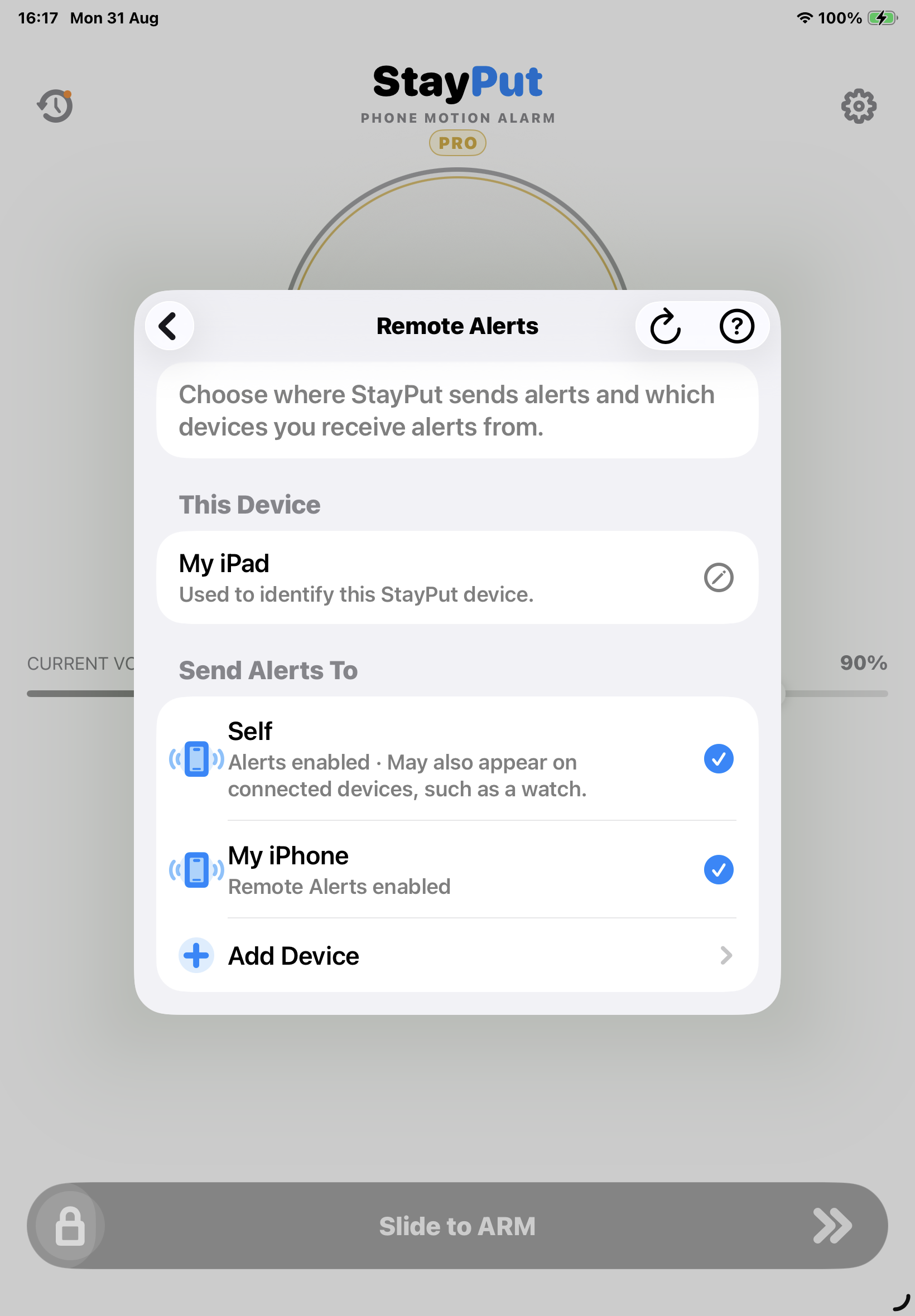
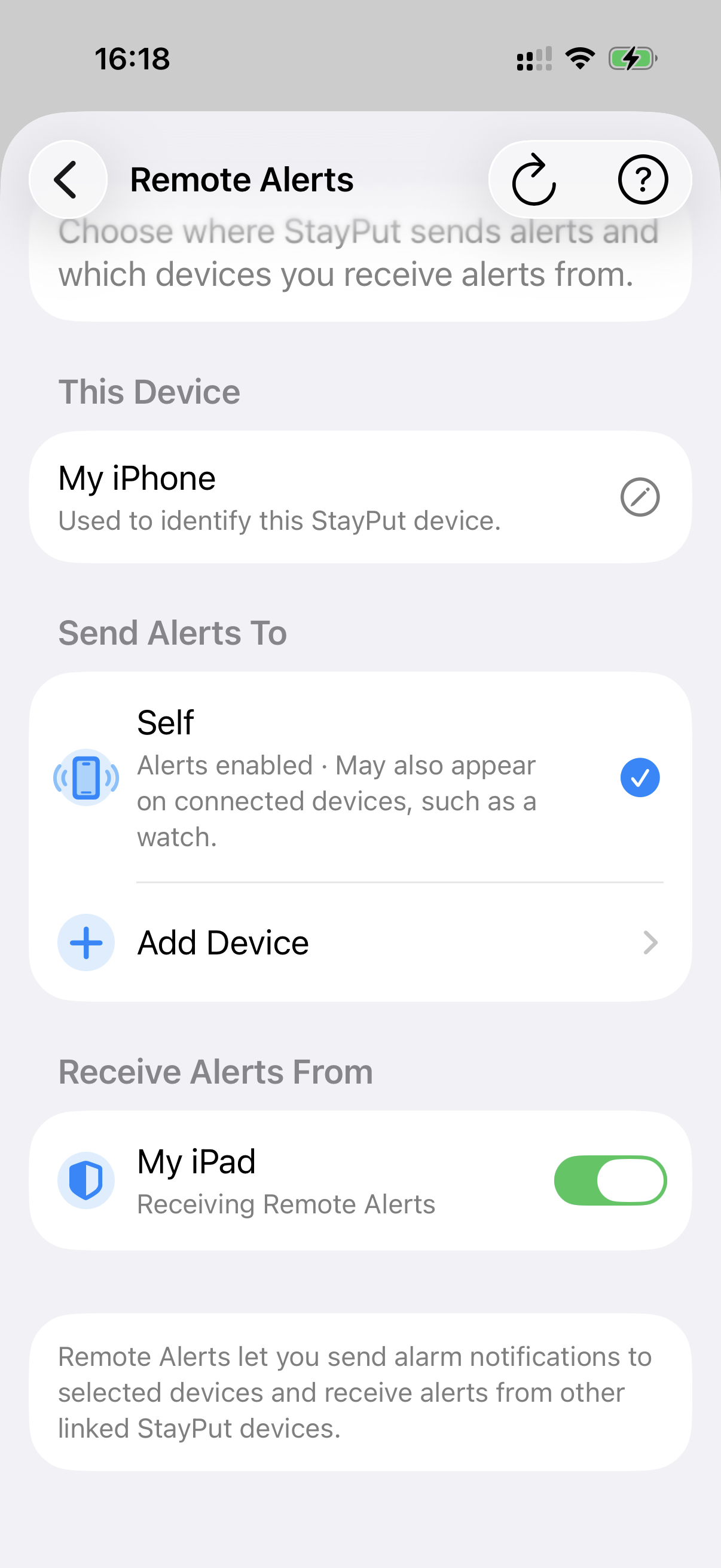
Remote Alerts are notifications that a StayPut Pro source device can send to another StayPut device when the protected device's alarm is triggered. Receiving Remote Alerts is free. The audible alarm still happens on the protected device.
Does the receiving device need StayPut Pro?
No. StayPut Pro is required on the device sending Remote Alerts. Receiving Remote Alerts is free.
How do I send alerts to another device?
On the protected source device, open Remote Alerts, go to Send Alerts To, then choose Add Device. StayPut shows a QR code and link invitation for the destination device to accept.
How do I link another device?
Create the invitation on the source device, then scan the QR code or open the link on the destination device. After acceptance, the source lists the destination under Send Alerts To, and the destination lists the source under Receive Alerts From.
What does Self mean?
Self alerts can also be enabled. The StayPut device sends its alarm notification to itself, and depending on your device and notification settings, iOS notifications may also appear on connected devices, such as a watch.
What do Send Alerts To and Receive Alerts From mean?
Send Alerts To is on the source device that is being protected. Receive Alerts From is on the destination device that can receive Remote Alerts from selected sources.
Can I pause alerts without removing the link?
Yes. The source device can pause sending alerts, and the destination device can pause receiving alerts, without removing the Alert Link.
How do I remove a linked device?
In Remote Alerts, swipe left on the linked device and choose Remove.
Does linking work both ways automatically?
No. Alert Links are directional. If device A sends alerts to device B, device B does not automatically send alerts to device A.
Can alerts appear on a watch?
Depending on your device and notification settings, iOS notifications may also appear on connected devices, such as a watch.
Do Remote Alerts work if the protected device is locked?
Once protection starts, StayPut is designed to continue operating while the protected iPhone or iPad is locked or the app is in the background. Once Armed, it monitors for movement. If the alarm is triggered and Remote Alerts are configured, StayPut can send the notification to the selected destination device.
Do Remote Alerts replace the audible alarm?
No. The protected StayPut device still provides the local audible alarm. Remote Alerts are an additional notification capability.
Does StayPut track the protected device?
No. StayPut is an audible movement alarm and deterrent. It does not provide remote tracking, theft recovery, or physical protection.
Security & disarming
Security & disarming
Can someone else simply turn off the alarm?
During an active protection session, StayPut requires owner authentication with Face ID or Touch ID before disarming. StayPut is still an audible movement alarm and deterrent, not a broader anti-theft guarantee.
Does StayPut track my device or belongings?
No. StayPut is an audible movement alarm and deterrent. It is not GPS tracking, theft recovery, or a replacement for physical security.
StayPut Pro
StayPut Pro
What do I get with StayPut Pro?
- Up to 24 hours continuous protection
- Remote Alerts to your other devices
- Profiles run for their intended duration
- Protect belongings while you're genuinely away
- One payment. Pro forever.
Free users can explore and configure the full Profile experience, including custom Alarm and Heartbeat recordings, but each arming runs for up to 2 minutes of active protection.
How is Free different from Pro?
Free lets you try the full StayPut configuration experience, including every Profile setting, but active protection stops after 2 minutes per protection cycle. StayPut Pro lets each Profile run for its intended duration, up to the app's current limit of 24 hours, and unlocks Remote Alerts to your other devices.
Is StayPut Pro a subscription?
No. StayPut Pro is a one-time in-app purchase.
How do I restore StayPut Pro?
Open StayPut settings, go to the StayPut Pro section, and tap Restore Purchases. StayPut asks the App Store to sync your purchase and unlocks Pro when a valid purchase is found.
Custom sounds
Custom sounds
Can I record my own alarm sound?
Yes. You can save custom Alarm recordings in your Alarm sound library, up to 30 seconds each.
Can I create my own heartbeat sound?
Yes. You can save custom Heartbeat/Chirp recordings in your Heartbeat sound library, up to 10 seconds each.
How do I rename or delete a custom sound?
Open Alarm Sound or Heartbeat Sound in Settings, then swipe a custom sound row. Swipe right to Rename. Swipe left to Delete. Built-in sounds cannot be renamed or deleted.
Rename changes only the display name, while the underlying recording stays the same, so saved Profiles continue to reference it correctly.
Why does StayPut need microphone permission?
StayPut needs microphone permission only when you choose to record custom sounds.
Troubleshooting
Troubleshooting
The alarm is too quiet
Increase device volume, check the audio output route, choose the iOS audio output you intend to use, and test the selected alarm before relying on it.
StayPut isn't detecting movement
Make sure StayPut has reached Armed, increase Motion Sensitivity, let the iPhone or iPad remain still during setup, and check that the protection duration has not already ended.
I denied microphone access
Open iOS Settings, find StayPut, and enable Microphone permission. Then return to StayPut and try recording your custom sound again.
My Pro purchase isn't showing
Use Restore Purchases in StayPut settings first. If Pro still does not appear after the App Store sync completes, contact support.
Contact support
Still need help?
Tell us what happened and we'll help with your StayPut question or problem. If you opened this page from the app, relevant app information may already be attached.
Do not send passwords, authentication information, or other sensitive information.